Add a vital layer of security to your Personnel account by enabling 2-Step Verification. This helps to keep out anyone who shouldn’t have access to your account by requiring a second step after you enter your password.
Adding it to your Personnel account
To enable 2-Step Verification on your Personnel account, click on the “my account” menu item (under the Home section). The click the “change” link for “2-Step Verification”.
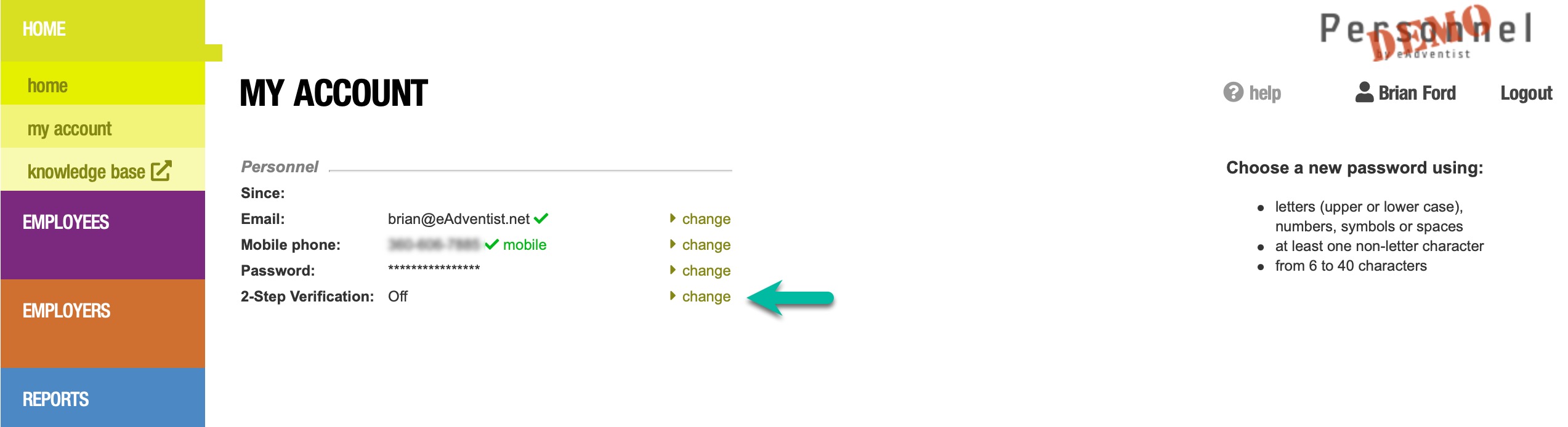
You’ll be asked to enter your password to authorize the change, then eAdventist will ask for your “mobile phone”.
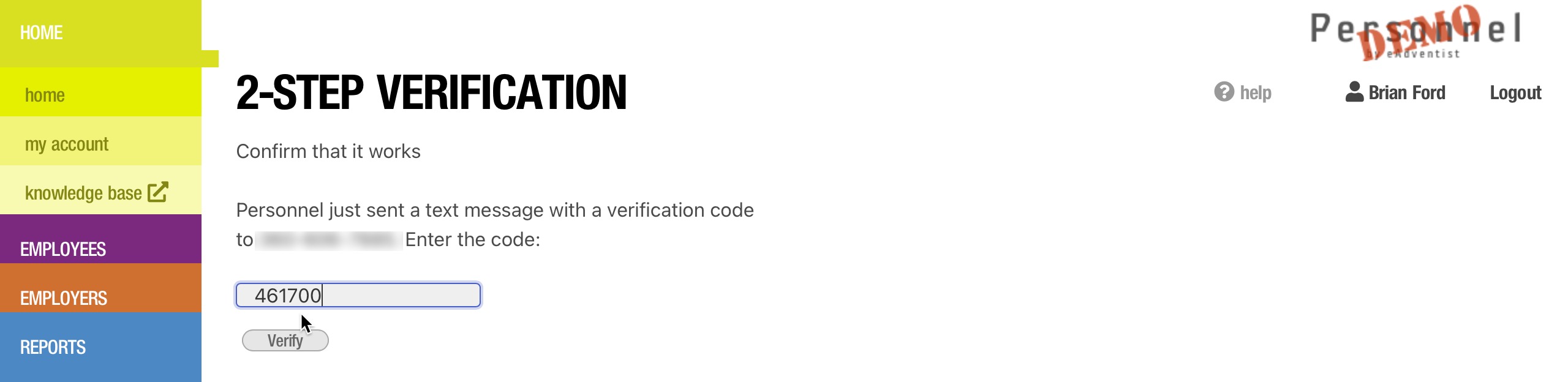
Once you enter your mobile phone number, eAdventist will text you a verification code (via SMS text) that you’ll enter to complete the setup process.
Signing into Personnel
Once this extra protection is enabled, you’ll sign into Personnel with your email and password, as usual. Then Personnel will send you a code (via SMS text) that you will enter in the “SMS code” field to verify and complete your sign-in.
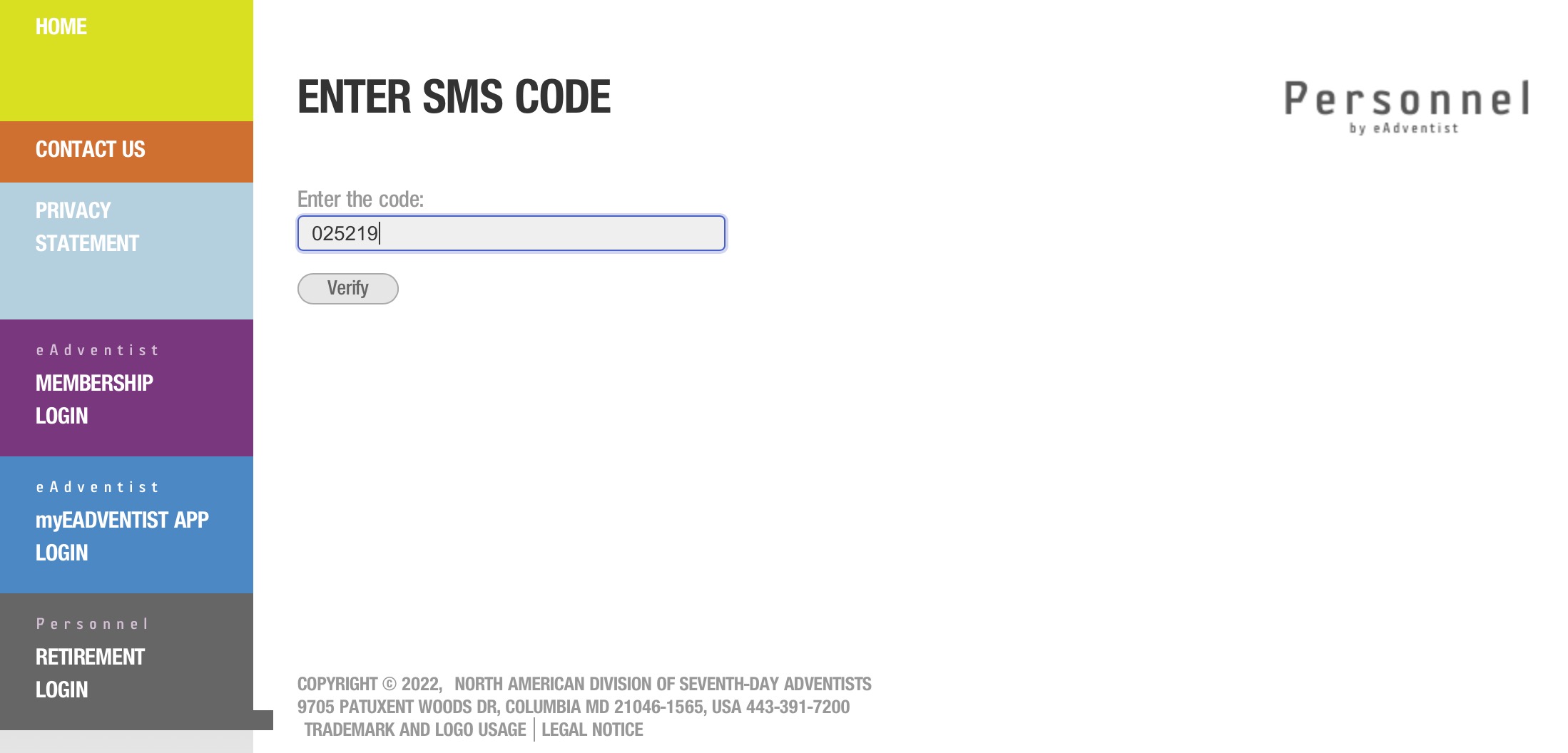
TIP: Remember to have your mobile phone handy whenever you need to sign into Personnel.
 Personnel News